
Virtual Machine Error
The function failed because this instance of your program is running inside a virtual machine / hypervisor and you’ve prevented the function from running inside a VM.
HydroSym will show this error during activation if it detected you are running our software in a virtual machine. The node-locked licenses of HydroSym (Free Trial, Subscription and Perpetual license) are by default not able to run in a virtual machine as a security measure. If you want to run HydroSym in a virtual environment you should use a Floating type license (Anywhere or Perpetual networked license).
Note If you are unable to run floating type licenses in your environment, please contact us to discuss how to solve this issue.
Check if you are using a Virtualized Environment
You can check if your computer is using a Virtual Machine by opening the “Turn Windows Feratures on or off” dialog. In earlier versions of Windows you can find this in the Control Panel / Uninstall Programs, on the right hand site of the window. On Windows 10 or 11, you can just open Settings and type “Hyper-V” in the search box and it will pop-up in the list of options:

After clicking “Turn Windows features on or off”, a dialog will appear. To check if you are inside a virtual machine check if any of following items are checked:
- Hyper-V Platform (and its sub-nodes: Hyper-V Hypervisor and Hyper-V Services)
- Virtual Machine Platform
- Windows Defender Application Guard (part of Windows Defenter that runs apps in a virtual machine)
- Windows Hypervisor Platform

Disabling Windows Hyper-V
The following steps disable the Windows Hyper-V features:
- First open the “Turn Windows features on or off” as described above.
- Uncheck all mentioned Hyper-V options
- Close the “Turn Windows features on or off” dialog by pressing “OK”
- Click the Windows “Start button”
- Type “cmd”
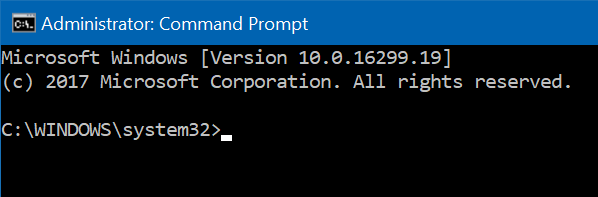
Right click “Command Prompt” and click “Run as administrator”

Check if the title of the prompt is “Administrator: Command Prompt”
- Execute
bcdedit /set hypervisorlaunchtype off. After pressing enter you should see “The operation completed successfully.” - Restart your computer

If after disabling Windows Hyper-V you are still unable to activate HydroSym, please contact us for support at info@paro.nl.